How to Hide Online Status on GB WhatsApp
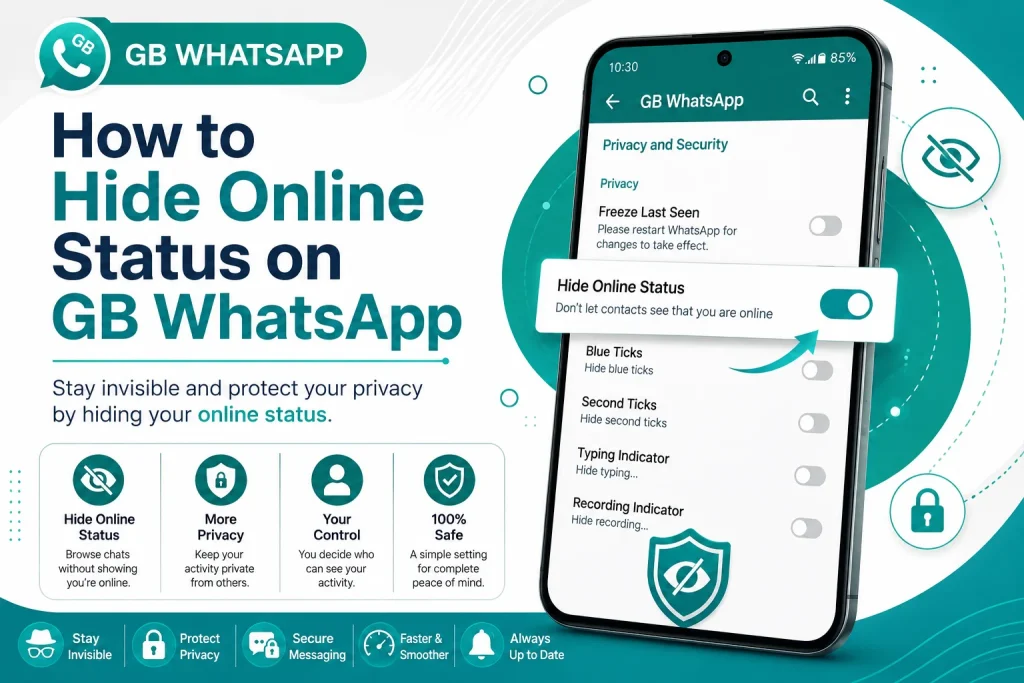
One of the most popular reasons people install GB WhatsApp is the ability to hide their online status. With the official WhatsApp, anyone can see when you are online, which removes your privacy. GB WhatsApp gives you full control over your online visibility, letting you chat, browse, and read messages without anyone knowing. This 2026 guide shows you exactly how to hide online status on GB WhatsApp.
Why Hide Online Status on GB WhatsApp
Online status is a small green dot that appears next to your name in WhatsApp chats. While it may seem harmless, it reveals a lot about your activity. People can see when you are awake, when you are ignoring them, and when you are using WhatsApp at unusual hours. Many users want to browse privately without this pressure, and GB WhatsApp is the perfect tool for that.
Difference Between Online Status and Last Seen
It is important to understand the difference between online status and last seen, because GB WhatsApp lets you control both separately.
- Online status shows when you are actively using the app at that moment
- Last seen shows the last time you opened WhatsApp
- You can hide both, show both, or hide one while keeping the other visible
Requirements Before Hiding Online Status
Hiding online status in GB WhatsApp is built into the app and does not require any special tool. However, make sure you have the following.
- The latest version of GB WhatsApp installed
- A verified phone number on GB WhatsApp
- Access to GB Settings from the main menu
- The app should be updated to the 2026 release for best results
Step by Step Guide to Hide Online Status on GB WhatsApp
Follow these simple steps to turn off your online status and browse WhatsApp privately.
Step 1 Open GB WhatsApp on Your Phone
Launch the GB WhatsApp app from your home screen. Make sure you are using the latest version for full access to the privacy settings.
Step 2 Go to GB Settings
Tap on the three dots in the top right corner of the app and select GBSettings from the menu. This opens the main control panel for GB WhatsApp features.
Step 3 Open the Privacy Section
Inside GB Settings, tap on Privacy and Moderation. This is the central hub for all privacy options including online status, last seen, blue ticks, and more.
Step 4 Enable Hide Online Status
Look for the option called Hide Online Status and turn it on. GB WhatsApp may ask for confirmation before applying the change.
Step 5 Choose Whom to Hide From
GB WhatsApp gives you the option to hide your online status from everyone or only from selected contacts. Choose the option that fits your privacy needs.
Step 6 Save and Restart the App
Save the settings and restart GB WhatsApp. After restarting, your online status will no longer be visible to the contacts you selected.
Other Privacy Settings to Enable Together
To make your privacy even stronger, enable these related settings after hiding your online status.
| Privacy Setting | What It Does |
|---|---|
| Hide last seen | Hides your last active time |
| Disable blue ticks | Read messages without sending read receipts |
| Hide second tick | Hides message delivery confirmation |
| Hide typing indicator | Stops others from seeing when you type |
| Hide recording status | Hides voice recording activity |
| Anti revoke messages | Lets you see deleted messages |
| Freeze last seen | Pins your last seen to a fixed time |
How to Show Fake Online Status
GB WhatsApp also allows you to show a fake online status to specific contacts. This means you can appear online at a time when you are not using the app. This is useful for users who want to trick certain people into thinking they are available.
- Open GBSettings and go to Privacy
- Tap on Fake Online Status
- Choose the contact you want to show the fake status to
- Set the time and day for the fake status
- Save the settings
How to Hide Online Status from Specific Contacts
If you do not want to hide your online status from everyone, GB WhatsApp allows you to select specific contacts only.
- Open GB WhatsApp and go to GBSettings
- Tap on Privacy and then Hide Online Status for Specific
- Select the contacts you want to hide from
- Save the list and restart the app
Common Issues When Hiding Online Status
Sometimes users run into problems after turning on this setting. Here are common issues and how to fix them.
| Issue | Cause | Solution |
|---|---|---|
| Online status still visible | App needs restart | Restart GB WhatsApp |
| Cannot find the option | Outdated version | Update to the latest APK |
| Settings reset after update | App reinstalled | Re-enable after update |
| Cannot hide from groups | Group privacy rules | Use group specific settings |
| Friends report seeing you online | Cached status | Wait 5 minutes for cache refresh |
Benefits of Hiding Online Status
Hiding your online status gives you a number of important benefits that improve your messaging experience.
- Chat privately without being watched
- Read messages at your own pace
- Avoid being judged for being always online
- Reduce pressure to reply instantly
- Maintain personal boundaries in conversations
- Use WhatsApp without distractions
Best Practices When Hiding Online Status
Follow these best practices to get the most out of the hide online status feature in GB WhatsApp.
- Always use the latest version of GB WhatsApp for best results
- Combine with hide last seen for complete invisibility
- Do not abuse the feature by ignoring important messages
- Update your status occasionally so people know you are active
- Use freeze last seen to keep a consistent time
- Restart the app after any update to apply settings
Final Thoughts on Hiding Online Status
Hiding your online status on GB WhatsApp is one of the easiest and most useful privacy features available. With just a few taps, you can browse WhatsApp privately, control your visibility, and stop unwanted attention from contacts. Combined with other privacy tools like hide last seen and disable blue ticks, GB WhatsApp gives you complete control over your messaging presence in 2026.
Frequently Asked Questions
Can I hide my online status on GB WhatsApp for free?
Yes, the hide online status feature is completely free in GB WhatsApp. You do not need to pay for any premium plan or subscription.
Will others know if I hide my online status?
No, the feature works silently. Other contacts will not be notified that you have hidden your online status from them.
Can I hide online status from one specific person only?
Yes, GB WhatsApp lets you choose specific contacts to hide your online status from, while remaining visible to everyone else.
Does hiding online status affect my messages?
No, hiding online status does not affect your ability to send or receive messages. You can still chat normally with full functionality.
Why is my online status still showing after I turned it off?
If your online status is still visible, restart the app, clear the cache, and make sure you are using the latest version of GB WhatsApp.