How to Transfer WhatsApp Chats to GB WhatsApp
Many users start with the official WhatsApp and later decide to switch to GB WhatsApp for more features. The biggest concern during this switch is losing old chats, media, and contacts. With the right method, you can transfer WhatsApp chats to GB WhatsApp without losing a single message. This 2026 guide explains every step in detail.
Why Transfer WhatsApp Chats to GB WhatsApp
There are many reasons people move from official WhatsApp to GB WhatsApp. The most common reasons include wanting better privacy controls, custom themes, dual account support, and the ability to send large files. Whatever your reason, your chat history is valuable and should be preserved during the switch.
Can You Transfer Chats from Official WhatsApp to GB WhatsApp
Yes, you can transfer chats from official WhatsApp to GB WhatsApp. Both apps use a similar local backup system, and GB WhatsApp can detect the official backup during installation. With a few extra steps, you can also transfer media, voice notes, documents, and even call logs in some cases.
Things to Prepare Before the Transfer
Before starting the transfer process, make sure you have the following ready.
- Latest version of GB WhatsApp APK downloaded
- Stable internet connection
- Enough free storage on your phone
- Local backup of official WhatsApp chats
- A Google Drive backup for safety
Step by Step Guide to Transfer WhatsApp Chats to GB WhatsApp
Follow these steps to move your chats from the official WhatsApp to GB WhatsApp without losing any data.
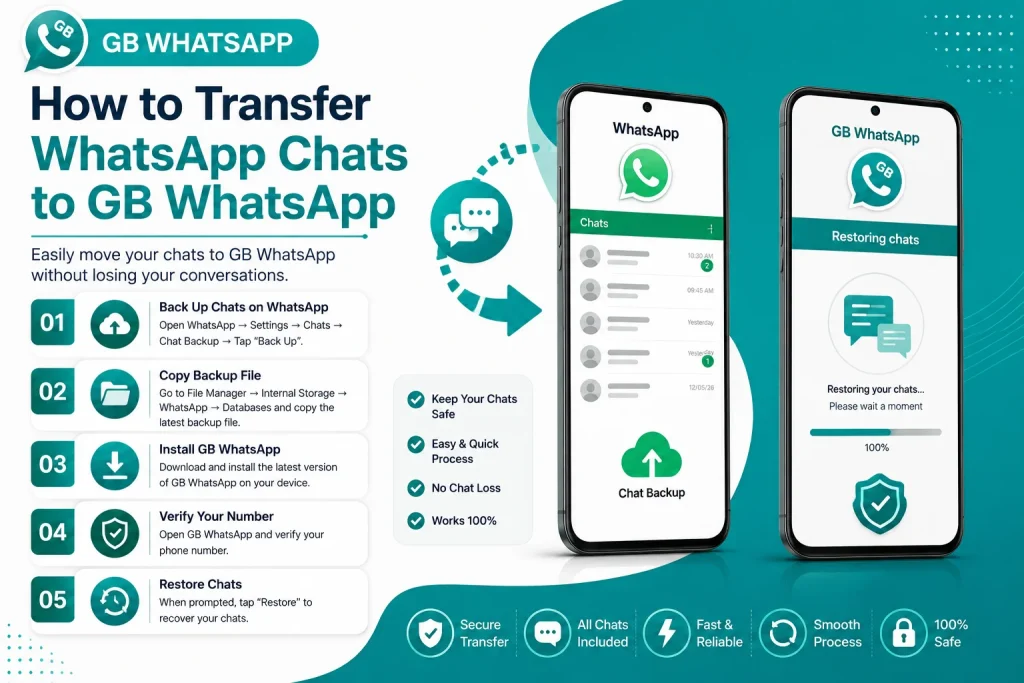
Step 1 Back Up Chats in Official WhatsApp
Open the official WhatsApp, tap the three dots, and go to Settings, then Chats, then Chat Backup. Tap on Backup Now to save a local copy of your chats on your phone storage.
Step 2 Note the Backup Folder Location
The official WhatsApp stores backups in a folder named WhatsApp inside your phone storage. The actual backup file is located in WhatsApp, Databases. Note this path for later use.
Step 3 Install GB WhatsApp on Your Phone
Enable Unknown Sources in your phone settings, then install the latest GB WhatsApp APK. Open the app and verify your phone number using the same number that was used on official WhatsApp.
Step 4 Allow GB WhatsApp to Detect the Backup
During the setup process, GB WhatsApp will automatically scan your phone storage for any existing WhatsApp or GB WhatsApp backups. When it finds the official backup, it will ask if you want to restore it.
Step 5 Tap on Restore
Tap on the Restore button and wait for the chats, images, videos, and documents to load into GB WhatsApp. The time taken depends on the size of your backup.
Step 6 Verify the Transfer
Open a few chats to confirm that the messages, media, and voice notes have been transferred successfully. If anything is missing, you can restore from an older backup file.
How to Transfer Chats Manually If Restore Fails
If the automatic restore does not work, you can transfer chats manually by copying the backup files.
- Copy the entire WhatsApp folder from your phone storage
- Rename the copied folder to GBWhatsApp
- Move the folder back to your phone storage
- Open GB WhatsApp and verify your number
- When prompted, choose Restore from local backup
Transfer Methods Comparison
Different transfer methods work for different situations. Here is a comparison of the most common methods.
| Method | Best For | Difficulty | Success Rate |
|---|---|---|---|
| Auto restore during setup | New GB WhatsApp install | Easy | High |
| Manual folder copy | When auto restore fails | Medium | High |
| Google Drive restore | Cross device transfer | Easy | Medium |
| Third party tools | Advanced transfers | Hard | Low |
| Titanium backup | Rooted devices | Hard | High |
How to Transfer Media Files Separately
If you want to transfer only media files like photos and videos, you can do it manually.
- Open your phone file manager
- Go to WhatsApp, Media, WhatsApp Images
- Copy all the images and videos
- Paste them into GBWhatsApp, Media, GBWhatsApp Images
- Restart GB WhatsApp to refresh the gallery
How to Transfer Voice Notes and Documents
Voice notes and documents are usually included in the chat backup, but if they are missing, you can copy them manually.
- Open WhatsApp, Media, WhatsApp Voice Notes
- Copy all files to GBWhatsApp, Media, GBWhatsApp Voice Notes
- Repeat the same for WhatsApp Documents folder
- Restart GB WhatsApp to load the files
Common Problems During Chat Transfer
Sometimes the transfer process may not go smoothly. Here are common issues and their solutions.
| Problem | Cause | Solution |
|---|---|---|
| Backup not detected | Wrong folder name | Rename folder to GBWhatsApp |
| Restore fails | Corrupted backup | Try an older backup file |
| Media missing | Wrong media folder | Copy media manually |
| Chats appear empty | Wrong phone number | Verify with original number |
| Google Drive not loading | Account mismatch | Use the same Google account |
Tips for a Smooth Chat Transfer
Follow these tips to make sure your WhatsApp to GB WhatsApp transfer is smooth and complete.
- Always back up before uninstalling official WhatsApp
- Use the same phone number on both apps during transfer
- Keep at least two backup copies in different folders
- Avoid clearing app data before restoring
- Do not interrupt the restore process
- Restart the phone after the transfer to refresh the file system
Final Thoughts on Transferring Chats to GB WhatsApp
Transferring chats from official WhatsApp to GB WhatsApp is straightforward when you back up your data first and follow the right steps. Whether you choose automatic restore, manual copy, or Google Drive transfer, the key is to keep your backup files safe. Once transferred, you can enjoy all the extra features of GB WhatsApp with your full chat history intact in 2026.
Frequently Asked Questions
Can I transfer chats from official WhatsApp to GB WhatsApp for free?
Yes, the transfer process is completely free. GB WhatsApp can read the official WhatsApp backup files and restore them during setup at no cost.
Will I lose my media files when transferring to GB WhatsApp?
No, your media files are included in the backup and will be restored. If any files are missing, you can copy them manually from the WhatsApp media folder.
Can I transfer chats to GB WhatsApp without uninstalling the official app?
Yes, you can install GB WhatsApp alongside the official app. During setup, GB WhatsApp will still detect and restore your existing backup.
How long does it take to transfer chats to GB WhatsApp?
The transfer time depends on the size of your backup. Small backups finish in seconds, while large backups with many videos may take several minutes.
What happens if my chat transfer fails in GB WhatsApp?
If the transfer fails, try copying the backup folder manually, renaming it to GBWhatsApp, and restoring from local storage. You can also use an older backup file if available.