GB WhatsApp Permissions Explained for Beginners
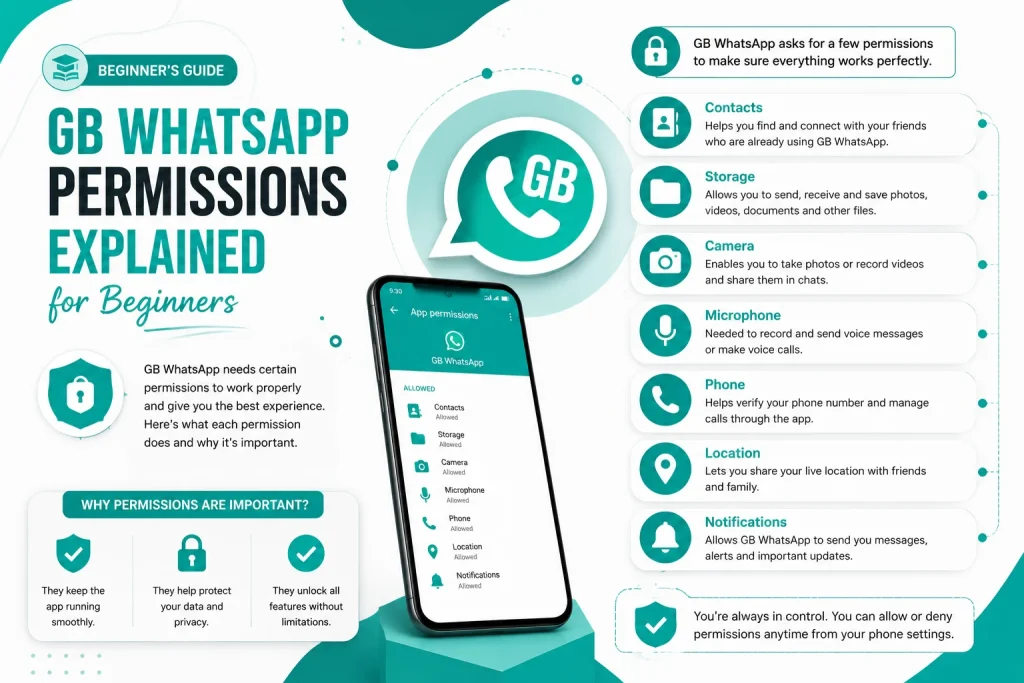
When you install GB WhatsApp, the app asks for several permissions on your Android device. Many beginners do not know what these permissions do or whether they are safe to grant. This 2026 beginner guide explains every GB WhatsApp permission, what it does, and how to manage them for maximum safety.
Why App Permissions Matter in GB WhatsApp
App permissions control what GB WhatsApp can access on your phone, such as your camera, contacts, and storage. Granting the right permissions allows the app to work properly, while unnecessary permissions can put your privacy at risk. Understanding each permission helps you decide what to allow and what to deny.
List of GB WhatsApp Permissions and What They Do
Here is a complete list of the main permissions GB WhatsApp asks for and what each one is used for.
| Permission | What It Does | Is It Required |
|---|---|---|
| Storage | Save and access media files | Yes |
| Contacts | Find friends and sync contacts | Yes |
| Camera | Take photos and videos in chat | Yes |
| Microphone | Record voice messages and calls | Yes |
| Location | Share live location | Optional |
| Phone | Make WhatsApp calls | Optional |
| SMS | Auto verify your number | Optional |
| Notifications | Show new message alerts | Yes |
| Calendar | Add event reminders | Optional |
| Nearby devices | Connect to wearables | Optional |
Storage Permission in GB WhatsApp
The storage permission allows GB WhatsApp to access photos, videos, documents, and other files on your phone. This is required for sending and receiving media, downloading statuses, and saving backups.
- Required to send images and videos in chats
- Needed to save statuses to your gallery
- Used for chat backup and restore
- Required to download media files
- If denied, you cannot send or save any media
Contacts Permission in GB WhatsApp
GB WhatsApp uses the contacts permission to find friends who are also on WhatsApp. This makes it easier to start new chats without manually adding numbers.
- Syncs your phone contacts with GB WhatsApp
- Suggests friends to message
- Helps you find new contacts on the app
- Used for group invites and contact sharing
- If denied, you must add numbers manually
Camera Permission in GB WhatsApp
The camera permission allows GB WhatsApp to take photos and record videos directly inside chats and status updates.
- Take photos to share in chats
- Record videos for status updates
- Scan QR codes for WhatsApp Web
- Make video calls
- If denied, you cannot capture or share media in real time
Microphone Permission in GB WhatsApp
The microphone permission is required to send voice messages and make voice or video calls through GB WhatsApp.
- Record voice notes in chats
- Make voice calls to contacts
- Make video calls with audio
- Record voice for status updates
- If denied, voice and call features will not work
Location Permission in GB WhatsApp
GB WhatsApp can share your live or current location with contacts if you grant the location permission. This is an optional feature used for meeting up or sharing travel updates.
- Share live location in chats
- Send your current location once
- View locations shared by friends
- Use location based stickers
- If denied, you can still chat normally without sharing location
Phone Permission in GB WhatsApp
The phone permission allows GB WhatsApp to make and manage calls. Some users do not need this if they only use the app for messaging.
- Make WhatsApp voice and video calls
- Use in call features
- Sync call logs with your phone
- Improve call quality and reliability
- If denied, you can still use the app for messaging
SMS Permission in GB WhatsApp
The SMS permission is used to automatically read the verification code sent by WhatsApp during setup. It is optional and you can enter the code manually if you prefer.
- Auto fill verification code
- Faster account setup
- No need to switch apps
- Can be skipped during install
- If denied, you can type the code manually
Notification Permission in GB WhatsApp
The notification permission allows GB WhatsApp to send alerts when you receive new messages, calls, or status updates. It is required for normal app usage.
- Show message alerts on lock screen
- Display pop up notifications
- Show incoming call alerts
- Notify about status replies
- If denied, you will not get real time alerts
How to Manage GB WhatsApp Permissions on Android
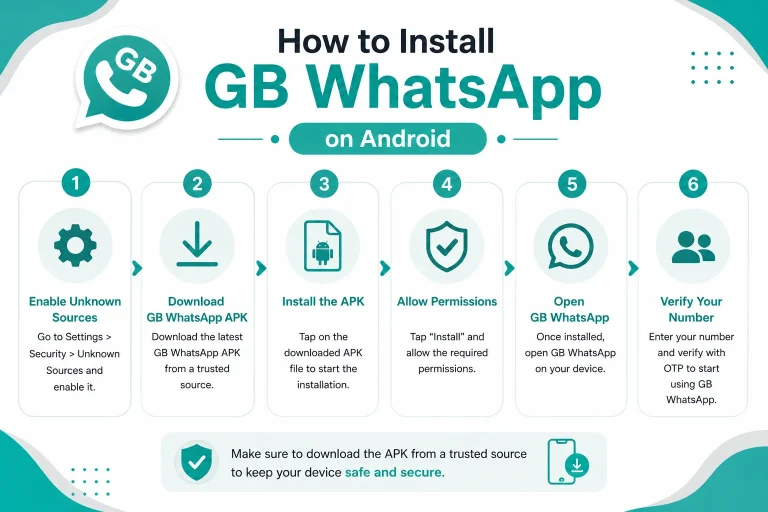
You can change GB WhatsApp permissions anytime from your phone settings.
- Go to Settings and tap on Apps
- Find GB WhatsApp in the app list
- Tap on Permissions
- Review each permission and turn it on or off
- Restart the app to apply the changes
Which Permissions Are Safe to Grant
Here is a quick reference for which permissions are safe to grant and which ones you should think about carefully.
| Permission | Safety Level | Recommendation |
|---|---|---|
| Storage | Safe | Required, grant it |
| Contacts | Safe | Required, grant it |
| Camera | Safe | Required, grant it |
| Microphone | Safe | Required, grant it |
| Notifications | Safe | Required, grant it |
| Location | Medium | Grant only if needed |
| Phone | Medium | Grant only if you make calls |
| SMS | Medium | Optional, can skip |
| Calendar | Low | Grant only if used |
| Nearby devices | Low | Deny if not needed |
How to Spot Risky Permissions in GB WhatsApp
If GB WhatsApp starts asking for unusual permissions that are not on the list above, it could be a sign of a fake or modified version. Watch out for these red flags.
- Requesting access to your call logs without reason
- Asking for accessibility services
- Reading your notifications from other apps
- Requesting device administrator rights
- Asking for background location always
How to Reset GB WhatsApp Permissions
If you want to start fresh and reset all GB WhatsApp permissions, follow these steps.
- Go to phone Settings and then Apps
- Find GB WhatsApp and tap on Permissions
- Tap on Reset Permissions or Deny All
- Reopen GB WhatsApp and grant only the permissions you need
Final Thoughts on GB WhatsApp Permissions
Understanding GB WhatsApp permissions is essential for beginners who want to use the app safely. By knowing what each permission does, granting only what is needed, and watching out for unusual requests, you can protect your privacy and enjoy all the features of GB WhatsApp. Take a few minutes to review your permission settings today and keep them under control in 2026.
Frequently Asked Questions
What permissions does GB WhatsApp need to work properly?
GB WhatsApp needs storage, contacts, camera, microphone, and notification permissions to function fully. Other permissions like location and SMS are optional.
Is it safe to grant all permissions to GB WhatsApp?
Granting the required permissions is safe. However, you should only grant optional permissions like location and SMS if you actually use those features.
Can I use GB WhatsApp without granting contacts permission?
Yes, you can deny contacts permission and still use GB WhatsApp, but you will need to add phone numbers manually for new chats.
How do I know if a GB WhatsApp permission is fake or unsafe?
If GB WhatsApp asks for unusual permissions like accessibility services, call logs, or background location, the version may be unsafe. Use only trusted GB WhatsApp builds.
Can I change GB WhatsApp permissions after installation?
Yes, you can change any GB WhatsApp permission anytime from your phone Settings, under Apps, then Permissions.