How to Update GB WhatsApp Without Losing Chats
Updating GB WhatsApp to the latest version is important to enjoy new features, fix bugs, and stay protected against temporary bans. Many users worry about losing their chat history, media, and groups during the update process. With the right backup method and correct update steps, you can update GB WhatsApp without losing a single chat. This complete 2026 guide shows you exactly how to do it safely.
Why You Need to Update GB WhatsApp Regularly
GB WhatsApp is a third-party modded application, which means new versions are released frequently by developers. Each update brings new features, performance improvements, security patches, and anti-ban fixes. If you do not update GB WhatsApp regularly, you may face crashes, missed features, or even temporary bans from WhatsApp.
Here are the main reasons to keep your GB WhatsApp updated.
- Access to the latest features and customization options
- Improved stability and fewer crashes
- Anti-ban protection against WhatsApp detection
- Bug fixes from previous versions
- Better compatibility with new Android versions
- Enhanced privacy and security tools
Risks of Updating GB WhatsApp the Wrong Way
Updating GB WhatsApp is usually safe, but if you install the wrong version or skip the backup step, you risk losing your chats, contacts, and media. The most common risks include installing an unofficial build, switching to a different mod base, or not granting the correct permissions after updating.
To avoid these issues, always back up your chats before updating, and only download the new APK from a trusted source that matches your current GB WhatsApp base.
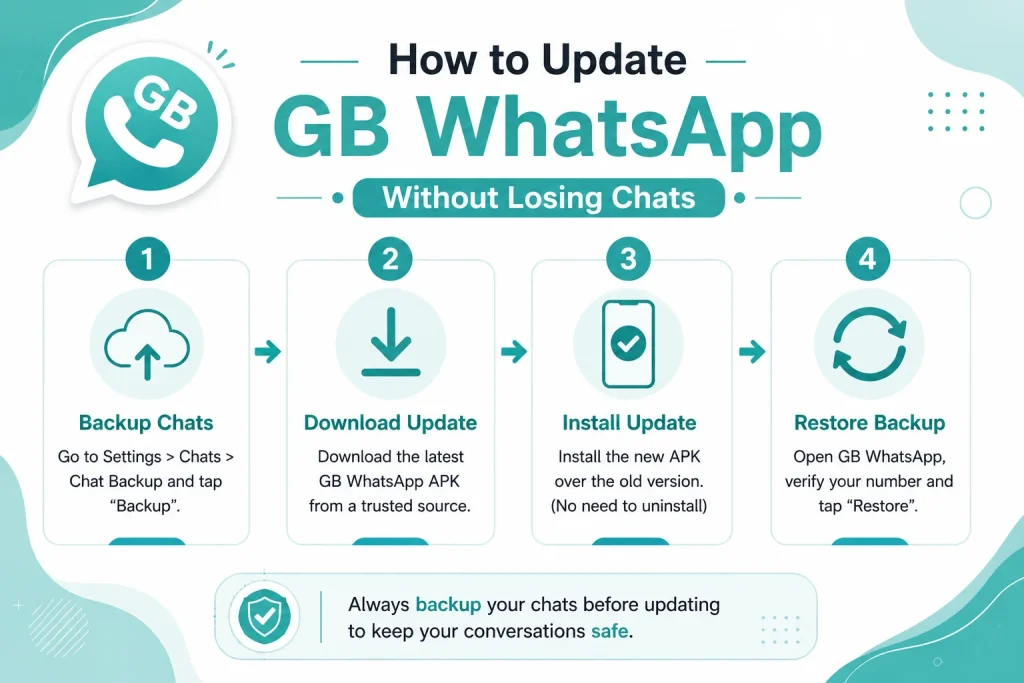
Step by Step Guide to Update GB WhatsApp Without Losing Chats
Follow these steps carefully to update GB WhatsApp while keeping all your conversations and media intact.
Step 1 Open GB WhatsApp and Go to Settings
Open your current GB WhatsApp app, tap on the three dots in the top right corner, and select GB Settings or Settings. From there, navigate to the Chats section to begin the backup process.
Step 2 Create a Local Backup of Your Chats
In the Chats settings, tap on Chat Backup and select Backup Now. This will save a copy of all your chats, images, videos, and documents to your phone’s internal storage. Wait for the backup to complete fully before moving to the next step.
Step 3 Note the Backup Folder Location
GB WhatsApp stores local backups in a folder usually named GBWhatsApp inside your phone storage. Note the exact path so you can restore from it later if needed. Common paths include Internal Storage, GBWhatsApp, Databases.
Step 4 Download the Latest GB WhatsApp APK
Open your browser and search for the latest GB WhatsApp update 2026. Download the updated APK file from a trusted source. Make sure the version you are downloading is based on the same official WhatsApp version to avoid compatibility issues.
Step 5 Install the Update Over the Existing App
Locate the downloaded APK file in your Downloads folder and tap to install it. Android will recognize the existing app and ask if you want to update. Tap Install and wait for the process to complete. Your chats and media will remain untouched.
Step 6 Restore Chats If Prompted
Open the updated GB WhatsApp. It will usually detect your existing data automatically. If it asks to restore, tap on Restore and wait for the process to complete. All your chats, groups, and media should appear as they were.
Backup Options in GB WhatsApp
GB WhatsApp gives you multiple backup options to protect your data. Understanding each one helps you pick the best method.
| Backup Type | Storage Location | Auto Backup | Best For |
|---|---|---|---|
| Local backup | Phone storage | Yes, daily | Offline safety |
| Google Drive | Google account | Yes, weekly | Cross device restore |
| External SD card | SD card | No | Extra large backups |
| Titanium Backup | App specific | No | Advanced users |
Common Update Errors and Quick Fixes
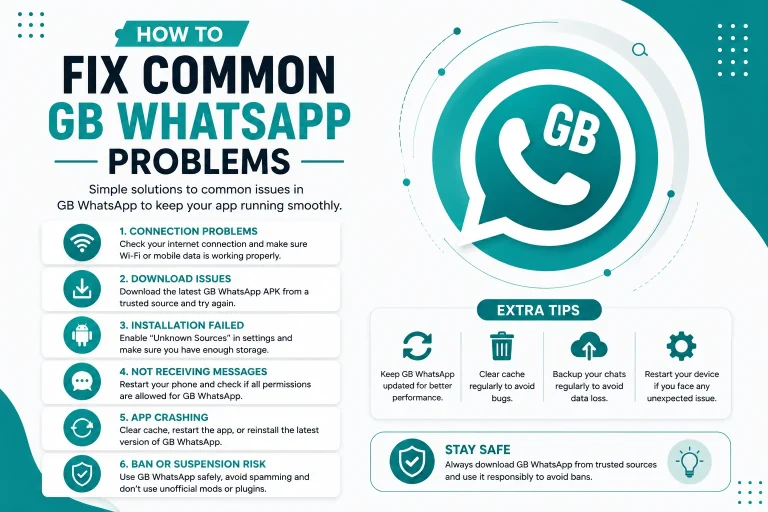
Even with the right steps, you may face some common errors while updating GB WhatsApp. Here is how to fix them quickly.
| Error | Cause | Solution |
|---|---|---|
| App not installed | Signature mismatch | Uninstall old version and reinstall after backup |
| Backup not found | Wrong folder path | Move backup to GBWhatsApp folder |
| Restore stuck | Corrupted backup file | Use older backup copy |
| Verification loop | Server issue | Wait 10 minutes and retry |
| Chats disappeared | Wrong base version installed | Reinstall the matching base |
Tips to Keep Your Chats Safe During Updates
Here are some expert tips to make sure your chats are never lost when updating GB WhatsApp.
- Always create both local and Google Drive backups before updating
- Do not clear app data before installing the update
- Avoid switching mod bases when updating
- Keep at least two backup copies in different folders
- Check the changelog before updating to know what is new
- Update only when your phone has at least 50 percent battery
- Use a stable Wi-Fi connection to avoid broken downloads
How Often Should You Update GB WhatsApp
The recommended update frequency depends on how actively you use the app and how important the latest features are to you. Most developers release updates every two to four weeks. Updating once a month is usually enough to enjoy new features and stay protected. If a critical anti-ban patch is released, update immediately.
Final Thoughts on Updating GB WhatsApp Safely
Updating GB WhatsApp without losing chats is easy when you back up your data first and install the correct update version. Always download the latest APK from a trusted source, keep your backup files in a safe location, and avoid switching mod bases unless necessary. With these habits, you can enjoy every new GB WhatsApp update in 2026 without ever losing your conversations.
Frequently Asked Questions
Will updating GB WhatsApp delete my chats?
No, updating GB WhatsApp over the existing app does not delete your chats. Your data is preserved as long as you do not uninstall the app or clear its data before updating.
Where does GB WhatsApp store chat backups?
GB WhatsApp stores local backups in the GBWhatsApp folder inside your phone’s internal storage. You can also enable Google Drive backup from the settings for cloud storage.
Can I update GB WhatsApp without losing media files?
Yes, your media files such as images, videos, and documents are preserved during the update process. To be safe, always back up the GBWhatsApp Media folder before updating.
What happens if I install the wrong version during update?
If you install an incompatible version, your chats may not appear. You can fix this by uninstalling the app, restoring your backup from the GBWhatsApp folder, and reinstalling the correct version.
Should I uninstall GB WhatsApp before updating?
No, you should not uninstall GB WhatsApp before updating. Simply install the new APK over the existing app to preserve all your chats and settings.