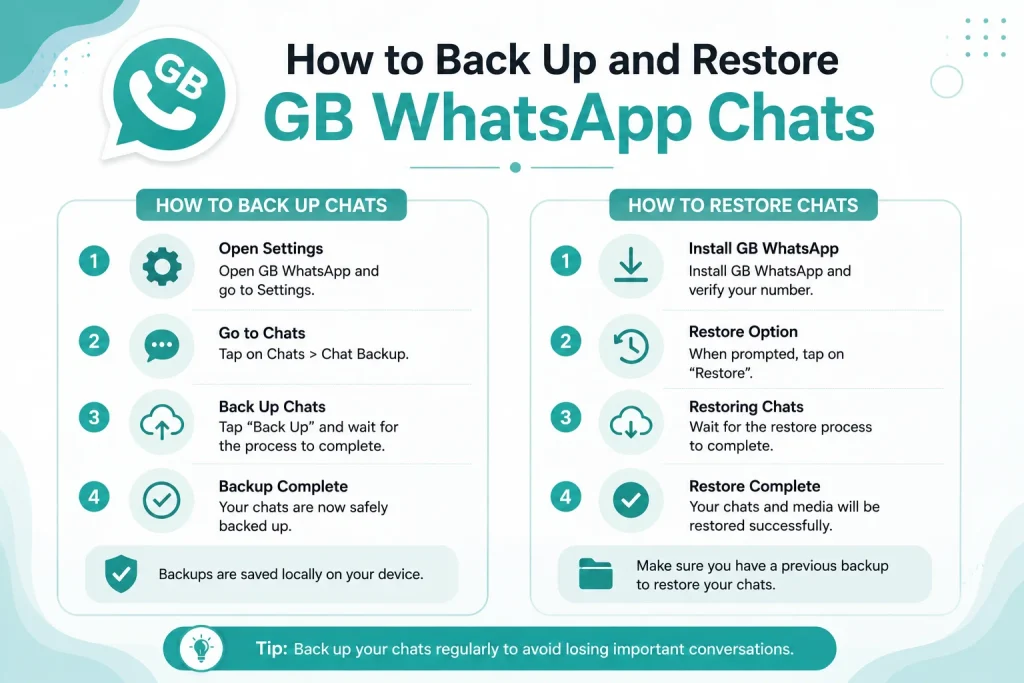
How to Back Up and Restore GB WhatsApp Chats
Backing up your GB WhatsApp chats is the most important thing you can do to protect your conversations, media, and group history. Whether you are switching phones, updating the app, or reinstalling after a problem, a proper backup ensures you never lose anything. This 2026 guide explains how to back up and restore GB WhatsApp chats using local storage, Google Drive, and SD card methods.
Why Backing Up GB WhatsApp Chats Is Essential
GB WhatsApp is a third-party application, which means it does not have the same automatic cloud protection as the official WhatsApp. If your phone gets lost, the app crashes, or you accidentally clear app data, you could lose all your chats permanently. That is why regular backups are not just helpful, they are essential.
Backing up your chats also makes it easier to move from official WhatsApp to GB WhatsApp, transfer data to a new device, and roll back to an older version if an update causes issues. With multiple backup options available, you can choose the method that best fits your needs.
Different Backup Methods in GB WhatsApp
GB WhatsApp supports several backup options, and each has its own advantages. Here is a complete overview.
| Backup Method | Storage | Frequency | Best Use Case |
|---|---|---|---|
| Local backup | Phone storage | Manual or daily | Quick offline restore |
| Google Drive | Cloud | Weekly or monthly | Cross device transfer |
| SD card backup | External memory | Manual | Large media files |
| Email backup | Email attachment | Manual | Sharing important chats |
| Titanium backup | App data | Manual | Rooted device users |
How to Back Up GB WhatsApp Chats to Local Storage
Local backup is the fastest and most reliable way to save your GB WhatsApp chats. The backup is stored in your phone’s internal storage and can be restored anytime without internet.
Step 1 Open GB WhatsApp Settings
Launch GB WhatsApp on your Android phone, tap the three dots in the top right corner, and choose GB Settings. Then go to the Chats section.
Step 2 Tap on Chat Backup
In the Chats menu, tap on Chat Backup. You will see options for local backup, Google Drive backup, and backup frequency.
Step 3 Select Backup Now
Tap on Backup Now to start an immediate backup. All your chats, images, videos, voice notes, and documents will be saved to the GBWhatsApp folder in your phone storage.
Step 4 Enable Auto Backup
To avoid manual backups, turn on Auto Backup and choose the frequency. Daily, weekly, or monthly options are available. Auto backup will run in the background and keep your data safe.
How to Back Up GB WhatsApp to Google Drive
Google Drive backup lets you restore your chats on any new device after verifying your phone number. It is perfect for users who switch phones often.
Step 1 Add Google Account to GB WhatsApp
In the Chat Backup menu, tap on Google Drive Settings. Sign in with your Google account and choose a backup frequency such as daily, weekly, or monthly.
Step 2 Choose Backup Type
Select the type of backup you want. You can back up with or without videos. If you back up without videos, the file size will be smaller and the upload faster.
Step 3 Start the Google Drive Backup
Tap on Backup Now to start uploading your chats to Google Drive. Make sure you are connected to Wi-Fi to avoid mobile data charges. The first backup may take several minutes depending on the size of your data.
How to Restore GB WhatsApp Chats
Restoring GB WhatsApp chats is simple once you have a backup ready. The steps differ slightly depending on the backup method you used.
Restoring from Local Backup
Open GB WhatsApp and verify your phone number. When prompted, tap on Restore and select the local backup file from the GBWhatsApp folder. Wait for the restore to complete and all your chats will reappear.
Restoring from Google Drive
Install GB WhatsApp on your new or reset device, verify the same phone number linked to your Google Drive backup, and tap on Restore when prompted. GB WhatsApp will download the backup from Google Drive and restore all your chats.
Restoring from SD Card
Move the backup folder from your SD card to the GBWhatsApp folder in the internal storage of your new device. Open GB WhatsApp, verify your number, and choose Restore from local backup.
How to Move Backups to a New Phone
If you are switching to a new Android device, follow these steps to transfer your GB WhatsApp data.
- Create a fresh local backup on your old phone
- Copy the GBWhatsApp folder to your new phone using a cable or cloud
- Install GB WhatsApp on the new device
- Verify your number and restore from the local backup
Common Backup and Restore Problems
Sometimes users face issues while backing up or restoring GB WhatsApp chats. Here are the most common problems and how to solve them.
| Problem | Cause | Solution |
|---|---|---|
| Backup not found | Wrong folder location | Move backup to GBWhatsApp folder |
| Restore stuck | Corrupted backup file | Try an older backup copy |
| Google Drive not connecting | Account issue | Re-login Google account |
| Videos missing in backup | Disabled video backup | Enable video backup option |
| Backup too large | Many media files | Use SD card or without video |
Best Practices for GB WhatsApp Backup
To make sure your chats are always safe, follow these best practices for backing up GB WhatsApp.
- Keep both local and Google Drive backups
- Set auto backup to run weekly
- Save a copy of your backup folder on your computer once a month
- Use a strong Google account password to protect cloud backups
- Do not clear app data unless you have a fresh backup ready
- Update GB WhatsApp only after creating a backup
Final Thoughts on Backing Up GB WhatsApp
Backing up and restoring GB WhatsApp chats is straightforward once you understand the available methods. Local backups are best for quick restores, Google Drive is best for device switching, and SD card backups are ideal for users with large media libraries. By setting up automatic backups and storing copies in multiple locations, you can ensure your GB WhatsApp chats are always safe and recoverable in 2026 and beyond.
Frequently Asked Questions
Where are GB WhatsApp chat backups stored on Android?
GB WhatsApp stores local backups in the GBWhatsApp folder inside your phone’s internal storage. The folder contains a Databases subfolder where backup files are saved with date names.
Can I restore GB WhatsApp chats to the official WhatsApp?
Restoring GB WhatsApp chats to the official WhatsApp is not officially supported. The folder structures are different, so direct restore usually fails without manual file renaming.
How often should I back up GB WhatsApp chats?
It is recommended to back up your chats at least once a week. If you receive a lot of important messages daily, set the auto backup to run every day.
Can I back up GB WhatsApp chats without internet?
Yes, local backup works fully offline. You only need internet when you choose Google Drive backup or want to move the backup to another device using cloud services.
Why is my Google Drive backup failing in GB WhatsApp?
Google Drive backup may fail due to account issues, low storage, or unstable internet. Re-login your Google account, free up Drive space, and reconnect to a stable Wi-Fi network.