How to Enable Auto Reply in GB WhatsApp
Auto reply is one of the most useful GB WhatsApp features, especially for business owners and busy professionals. It allows you to automatically send a pre written message to anyone who messages you, so you never miss an important chat. This 2026 guide explains how to enable auto reply in GB WhatsApp and customize it for personal and business use.
What Is Auto Reply in GB WhatsApp
Auto reply is a feature that sends an automatic response when someone messages you. You can set different replies for different contacts, groups, and times of day. This is similar to out of office replies in email but works directly inside WhatsApp. GB WhatsApp includes a powerful auto reply tool that goes beyond what the official app offers.
Why Use Auto Reply in GB WhatsApp
There are many reasons why people use auto reply in GB WhatsApp.
- Reply to customers when you are busy or away
- Send instant responses to new leads
- Manage work chats during off hours
- Set vacation replies when traveling
- Reply to friends when you are not available
- Automate repetitive questions for business
Requirements to Use Auto Reply
To set up auto reply in GB WhatsApp, you need the following.
- GB WhatsApp latest version installed
- Access to GB Settings from the main menu
- Permission for the app to run in the background
- Stable internet for the first time setup
- Optional: a business WhatsApp number
Step by Step Guide to Enable Auto Reply in GB WhatsApp
Follow these steps to set up auto reply for the first time.
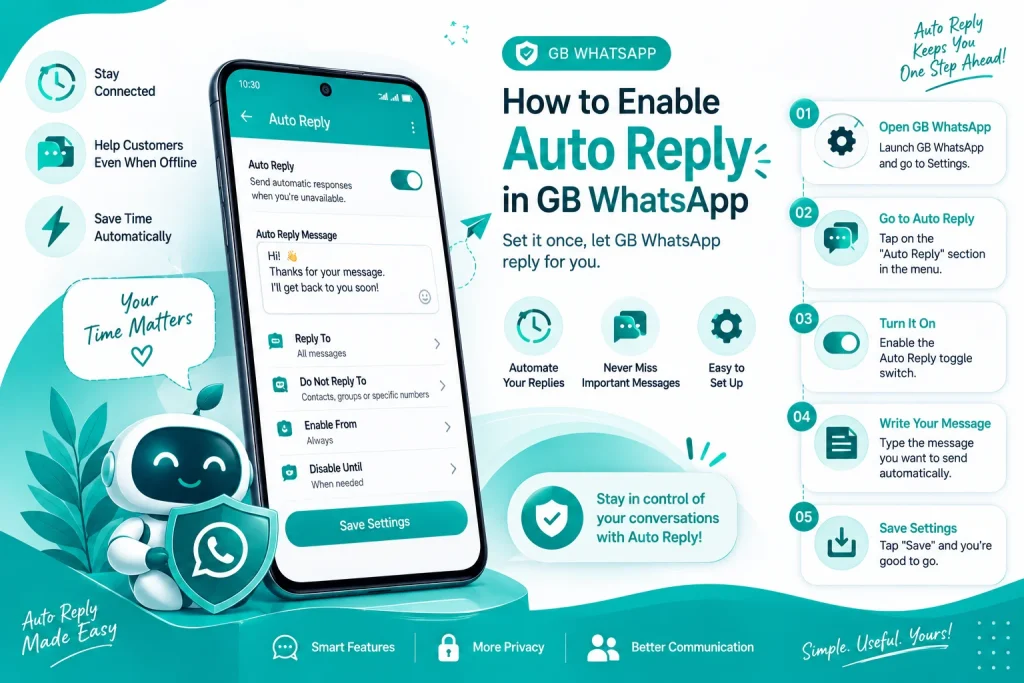
Step 1 Open GB WhatsApp and Go to GBSettings
Launch GB WhatsApp and tap the three dots in the top right corner. Select GBSettings from the menu to access the feature list.
Step 2 Find the Auto Reply Option
Inside GBSettings, scroll down and tap on Auto Reply or Business Tools. This opens the auto reply configuration page.
Step 3 Add a New Auto Reply Rule
Tap on Add Rule or the plus icon to create a new auto reply message. You can set the trigger, the message, and the contacts it applies to.
Step 4 Write Your Auto Reply Message
Type the message you want to send automatically. You can include emojis, links, and contact information. Keep the message short and clear.
Step 5 Choose When to Send the Reply
Select when the auto reply should be active. You can choose specific times, days, or even set it to always run. There is also an option to set a start and end date for vacation replies.
Step 6 Select the Contacts or Groups
Choose whether the auto reply should be sent to everyone, specific contacts, or only groups. You can also exclude certain contacts from the auto reply.
Step 7 Save and Activate the Rule
Tap on Save to activate the auto reply rule. GB WhatsApp will now send your message automatically whenever the conditions are met.
Auto Reply Examples for Different Uses
Here are some popular auto reply message templates you can use.
| Use Case | Auto Reply Message |
|---|---|
| General busy | Thanks for your message. I will reply soon. |
| Business hours | Our team is available 9 AM to 6 PM. We will respond shortly. |
| After hours | We are currently closed. We will get back to you tomorrow. |
| Vacation | I am on vacation and will reply when I return next week. |
| Customer support | Thank you for contacting us. An agent will reply in a few minutes. |
| Sales inquiry | Thanks for your interest. Our team will share details shortly. |
How to Set Different Auto Replies for Different Contacts
GB WhatsApp allows you to set up multiple auto reply rules for different people and groups.
- Open GBSettings and go to Auto Reply
- Add a new rule for each contact or group
- Customize the message and trigger for each rule
- Save all rules and they will work independently
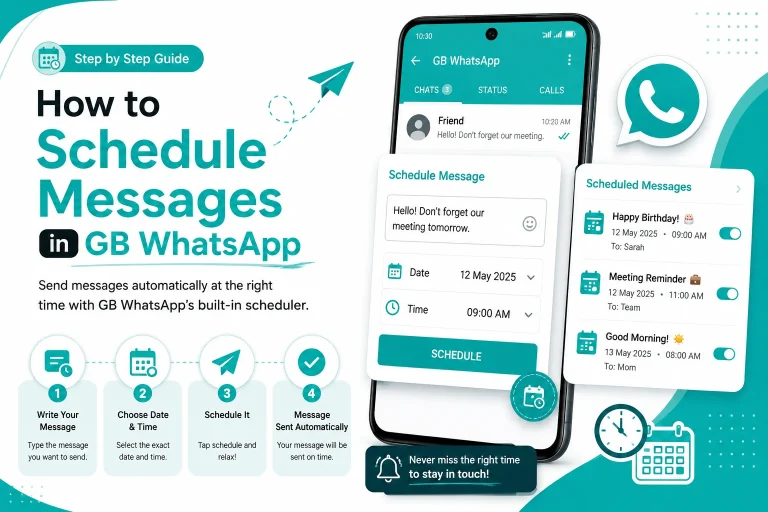
How to Schedule Auto Reply for Specific Times
If you only want auto reply during certain hours, use the scheduling feature.
- Open the auto reply rule you created
- Tap on Schedule or Set Time
- Choose the start time and end time
- Select the days of the week
- Save the schedule and the auto reply will only run during those hours
How to Use Auto Reply for Groups Only
Many users want to send auto replies only in groups, not personal chats. GB WhatsApp makes this easy.
- Open Auto Reply settings
- Add a new rule
- In the recipient field, select Groups Only
- Write your message and save
- The auto reply will only trigger in WhatsApp groups
Common Auto Reply Problems and Fixes
Sometimes the auto reply feature may not work as expected. Here are common issues and their solutions.
| Problem | Cause | Solution |
|---|---|---|
| Auto reply not sending | Rule not active | Make sure the toggle is on |
| Reply sent to wrong contact | Wrong rule settings | Edit the rule and select correct contacts |
| Reply sent multiple times | Loop trigger | Add delay between replies |
| Cannot find auto reply option | Outdated version | Update GB WhatsApp to the latest version |
| Reply not received by sender | Blocked contact | Make sure the contact is not blocked |
Best Practices for Using Auto Reply
Follow these best practices to use auto reply effectively in GB WhatsApp.
- Keep auto reply messages short and polite
- Do not use auto reply for personal chats too often
- Update your message regularly so it stays relevant
- Use different rules for personal and business contacts
- Add your business hours and contact info in the reply
- Turn off auto reply when you are available to chat
Final Thoughts on Auto Reply in GB WhatsApp
Auto reply is a powerful feature that can save you time and help you manage messages better, especially if you run a business or receive a lot of chats. GB WhatsApp makes it easy to set up, customize, and schedule automatic replies for any situation. Whether you need a simple away message or a full customer support system, the auto reply feature in GB WhatsApp 2026 has you covered.
Frequently Asked Questions
Is auto reply free in GB WhatsApp?
Yes, auto reply is a free feature in GB WhatsApp. You can create unlimited rules and messages without paying anything.
Can I set different auto replies for different contacts?
Yes, GB WhatsApp allows you to create separate auto reply rules for individual contacts, groups, or categories of people.
Can I schedule auto reply to run at specific times?
Yes, the auto reply feature includes a scheduling option where you can set start and end times for each rule.
Will the sender know they received an auto reply?
The sender will see the reply in the chat, but GB WhatsApp does not label it as an auto reply. It looks like a normal message.
Can I use auto reply for WhatsApp Business on GB WhatsApp?
Yes, auto reply works in both personal and business GB WhatsApp accounts. Many small businesses use it to manage customer responses.