How to Customize GB WhatsApp Themes and Fonts
One of the biggest reasons people love GB WhatsApp is the ability to fully customize the look and feel of the app. From thousands of themes to unique fonts and custom chat bubble styles, GB WhatsApp gives you complete design control. In this 2026 guide, you will learn how to customize GB WhatsApp themes, fonts, icons, and chat styles step by step.
Why Customize GB WhatsApp Themes and Fonts
The official WhatsApp looks the same on every phone, with very limited options for personalization. GB WhatsApp removes those limits and lets you change almost every visual element. You can apply new themes, switch fonts, redesign chat bubbles, and even change the app icon. This makes the app feel personal, fresh, and fun to use every day.
How to Access Theme Settings in GB WhatsApp
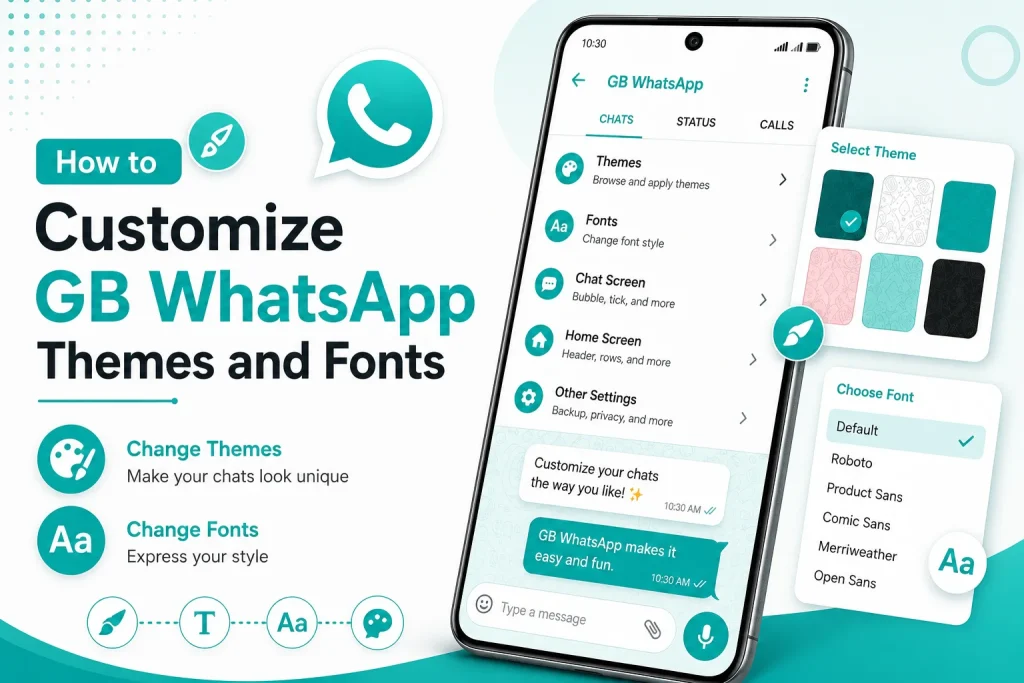
To start customizing GB WhatsApp, open the app, tap the three dots in the top right, and select GB Settings. From there, navigate to Themes or Universal settings. You can also access themes directly from the home screen using the Themes shortcut if available.
How to Download and Apply GB WhatsApp Themes
GB WhatsApp comes with a built in theme store that has thousands of free themes. You can browse, preview, and apply any theme you like.
Step 1 Open the Themes Menu
Open GB WhatsApp and tap on the three dots menu, then select GBSettings. Tap on Themes to open the theme library.
Step 2 Browse Available Themes
You will see a wide collection of themes in different categories such as dark, minimal, colorful, and holiday. Each theme shows a preview before you download it.
Step 3 Download a Theme
Tap on the theme you like and press Download. The theme will be saved into your GB WhatsApp library.
Step 4 Apply the Theme
After the download is complete, tap Apply. GB WhatsApp will instantly change the look of your entire app, including the home screen, chat list, and chat window.
How to Import Themes from External Sources
If you want a theme that is not available in the built in store, you can import themes from external files.
- Download a GB WhatsApp theme file in .xml or .zip format
- Save it in the GBWhatsApp, Themes folder on your phone
- Open GB WhatsApp and go to Themes
- Tap on Import and select the theme file
- Apply the imported theme
How to Change Fonts in GB WhatsApp
Custom fonts are another popular GB WhatsApp feature. You can choose from dozens of stylish fonts to make your messages stand out.
Step 1 Open Font Settings
In GB WhatsApp, go to GBSettings, then Universal, and select Fonts or Font Style.
Step 2 Choose a Built in Font
GB WhatsApp offers a list of preinstalled fonts. Browse the list and select your favorite. The preview will show you how your text will look.
Step 3 Apply the New Font
Tap OK or Apply to activate the font. All your messages, chat lists, and menus will use the new font style instantly.
Popular Font Options in GB WhatsApp
Here are some of the most popular fonts users love in GB WhatsApp.
| Font Name | Style |
|---|---|
| Classic | Default clean font |
| Elegant | Stylish and formal |
| Modern | Clean and minimal |
| Cute | Playful rounded font |
| Bold | Strong and heavy |
| Italic | Slanted stylish look |
| Handwritten | Casual handwritten style |
| Mono | Monospaced tech style |
How to Change Chat Bubble Style in GB WhatsApp
Chat bubble customization is a fun feature that lets you change the shape, color, and style of the message bubbles in your chats.
- Open GB WhatsApp and go to GBSettings
- Tap on Universal and then Chat Bubble
- Choose between different bubble shapes
- Customize the bubble color and tail style
- Save the changes
How to Change the GB WhatsApp App Icon
GB WhatsApp allows you to change the app icon on your home screen. This is useful for users who want to disguise the app or just love customizing their phone.
- Open GB WhatsApp and go to GBSettings
- Tap on Universal and then App Icon
- Browse the available icon options
- Select your favorite and tap Apply
- The home screen icon will update automatically
Best Themes for GB WhatsApp in 2026
Some themes are more popular than others because of their design and usability. Here are the top trending themes in 2026.
- Dark AMOLED theme for battery saving
- Minimal white theme for clean look
- Gradient colorful theme for a modern style
- iOS inspired theme for iPhone look
- Nature theme for a calm feel
- Business theme for professional chats
Tips for Choosing the Best GB WhatsApp Theme
When picking a theme, keep the following tips in mind to get the best experience.
- Choose a theme that matches your phone wallpaper
- Use dark themes to save battery on AMOLED screens
- Avoid themes with too many colors for better readability
- Test the theme for at least a day before keeping it
- Make sure the theme is compatible with your GB WhatsApp version
Common Theme Issues and Fixes
Sometimes themes may not apply correctly. Here are common issues and their solutions.
| Problem | Cause | Solution |
|---|---|---|
| Theme not applying | Wrong file format | Use compatible .xml or .zip files |
| Crashes after theme change | Corrupted theme | Reinstall GB WhatsApp and retry |
| Text becomes unreadable | Low contrast theme | Switch to a lighter theme |
| Icons missing | Theme incompatibility | Use a different version of the theme |
| Theme resets on restart | Wrong installation path | Reinstall the theme properly |
Final Thoughts on Customizing GB WhatsApp
GB WhatsApp gives you unmatched freedom to customize themes, fonts, icons, and chat styles. By exploring the theme store, importing external themes, and switching fonts, you can give your messaging app a unique look that matches your personality. With thousands of themes and dozens of fonts available in 2026, customization is one of the strongest reasons to use GB WhatsApp over the official app.
Frequently Asked Questions
Are GB WhatsApp themes free to download?
Yes, most themes in the GB WhatsApp theme store are completely free. Some third party theme developers may charge a small fee for premium themes.
Can I create my own theme for GB WhatsApp?
Yes, advanced users can design custom themes using XML files. Many tutorials and tools are available online to help you build your own theme.
Will changing themes affect my chats?
No, changing themes only affects the visual appearance of the app. Your chats, contacts, and media remain completely safe.
How do I reset GB WhatsApp to the default theme?
Open GB WhatsApp, go to GBSettings, then Themes, and select Restore Default or Default Theme. The app will return to the original look instantly.
Do themes work on all Android versions?
Most themes work on Android 5.0 and above. Some advanced themes may require a newer GB WhatsApp version and a recent Android device for the best performance.