How to Download Status Videos on GB WhatsApp
One of the most loved features of GB WhatsApp is the ability to download status videos and photos with a single tap. The official WhatsApp does not allow you to save statuses, but GB WhatsApp includes a built in status saver that makes it easy. This 2026 guide explains how to download status videos on GB WhatsApp step by step.
What Is the GB WhatsApp Status Downloader
The status downloader is a built in feature in GB WhatsApp that allows you to save any status update, including photos, videos, and text statuses, directly to your phone storage. When you view a status, GB WhatsApp automatically saves a copy in the background, and you can also manually download any status with one tap.
Why Download Status Videos from GB WhatsApp
There are many reasons why users want to download status videos from their contacts.
- Save funny or motivational videos to watch later
- Keep important announcements from family
- Download business updates and product videos
- Store memories shared by loved ones
- Repost content with credit to the original creator
- Watch statuses offline without opening the app
Requirements for Using the Status Downloader
Before using the status downloader, make sure you have the following.
- GB WhatsApp latest version installed
- Permission to access phone storage
- At least 100 MB of free space
- Statuses from your contacts that are still active
- Internet connection for the first sync
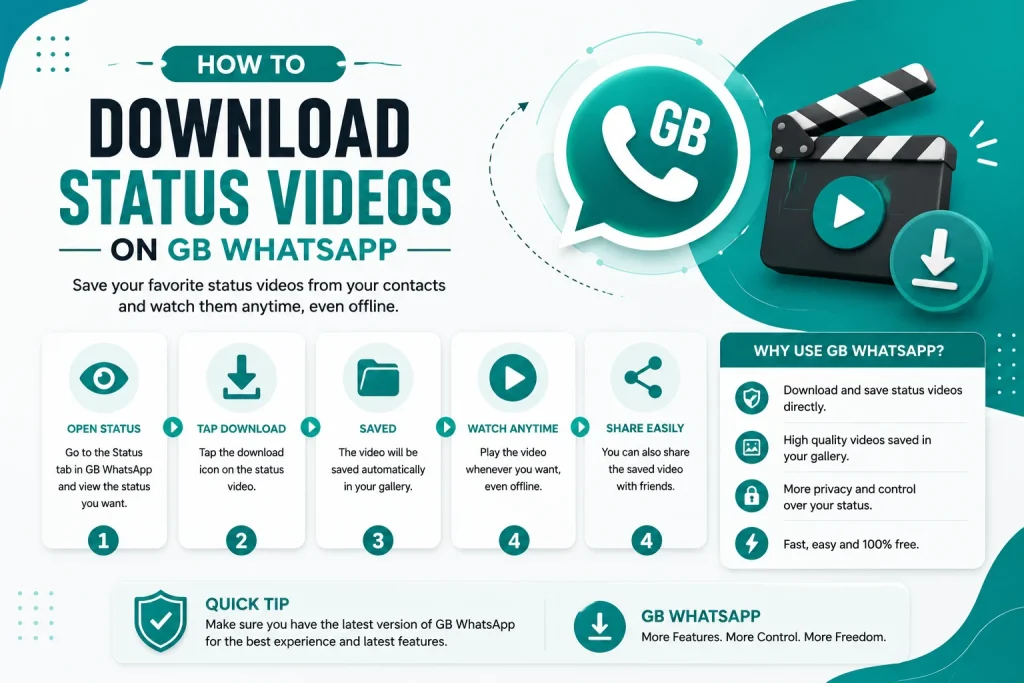
Step by Step Guide to Download Status Videos on GB WhatsApp
Follow these steps to download any status video on GB WhatsApp.
Step 1 Open GB WhatsApp on Your Phone
Launch the GB WhatsApp app and go to the Status tab. This is where you can see all the status updates from your contacts.
Step 2 View the Status You Want to Download
Tap on the status you want to save. You can view photos, videos, or text statuses. GB WhatsApp will automatically save a copy in the background once you view it.
Step 3 Tap the Download Icon
While viewing the status, look for the download icon at the bottom of the screen. Tap it, and the status will be saved to your phone storage immediately.
Step 4 Find the Downloaded File
Open your phone file manager and go to GBWhatsApp, Media, Statuses. All downloaded status files are saved in this folder.
Step 5 Use the Statuses Tab in GB WhatsApp
GB WhatsApp has a dedicated Statuses tab inside the app where you can view and manage all the statuses you have downloaded. This makes it easy to find and share them again later.
How to Auto Download Statuses
GB WhatsApp can automatically save statuses in the background while you view them. To enable this feature:
- Open GB WhatsApp and go to GBSettings
- Tap on Statuses or Privacy
- Enable Auto Save Status or Status Downloader
- Now every status you view will be saved automatically
How to Download Multiple Statuses at Once
If you want to save many statuses at once, GB WhatsApp allows bulk download.
- Open the Statuses tab in GB WhatsApp
- Tap on the multi select option
- Choose all the statuses you want to save
- Tap Download All to save them in one batch
- All files will be saved to the GBWhatsApp status folder
Comparison of Status Download Methods
GB WhatsApp offers multiple ways to download statuses. Here is a comparison.
| Method | Speed | Best For | File Location |
|---|---|---|---|
| One tap download | Fast | Single status | GBWhatsApp, Statuses |
| Auto save | Automatic | Daily use | GBWhatsApp, Statuses |
| Bulk download | Fast | Multiple files | GBWhatsApp, Statuses |
| Screenshot | Manual | Text statuses | Screenshots folder |
| Screen recording | Manual | Long videos | Movies folder |
How to Repost Downloaded Statuses
After downloading a status, you can easily repost it to your own story or share it with friends.
- Open the Statuses tab in GB WhatsApp
- Find the downloaded status you want to repost
- Tap on the Repost or Share icon
- Choose Share to Status or Share to Chat
- Add a caption if you like and post
Common Status Download Issues and Fixes
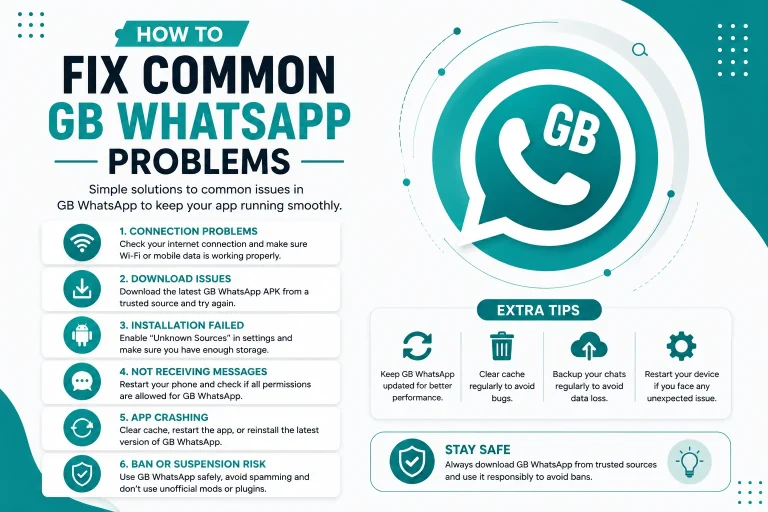
Sometimes the status downloader may not work. Here are common issues and how to fix them.
| Problem | Cause | Solution |
|---|---|---|
| Download button missing | Outdated version | Update GB WhatsApp |
| Status not saving | Auto save disabled | Enable auto save in settings |
| Saved file is corrupted | Storage error | Retry download |
| Cannot find saved file | Wrong folder | Check GBWhatsApp, Statuses |
| Download button not responding | Cache issue | Clear app cache |
Tips for Managing Downloaded Statuses
Follow these tips to keep your downloaded status collection organized.
- Create separate folders for different contact groups
- Delete old statuses every month to free space
- Rename files for easy identification
- Use the GB WhatsApp Statuses tab to browse downloads
- Back up your favorite statuses to cloud storage
- Do not share copyrighted content without permission
Privacy and Etiquette When Downloading Statuses
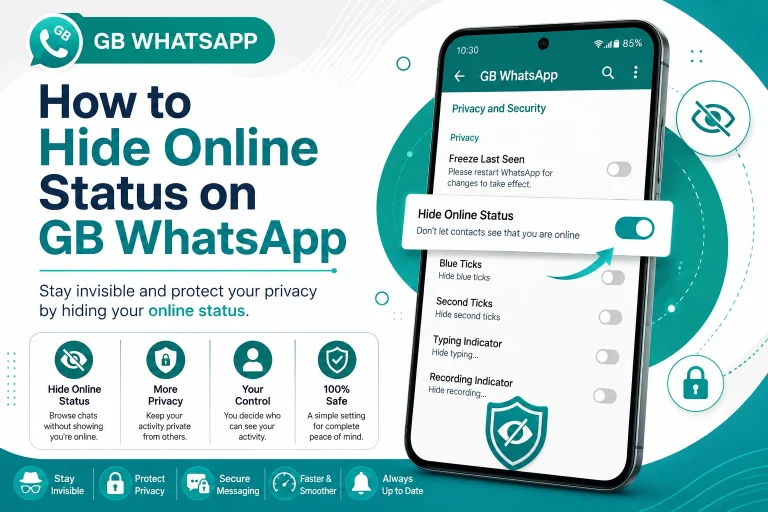
Even though GB WhatsApp allows you to download statuses, it is important to respect privacy and follow good etiquette.
- Always ask permission before reposting someone else status
- Do not download statuses for blackmail or misuse
- Avoid sharing private or personal status content
- Give credit if you repost content from a creator
- Use downloaded statuses responsibly and ethically
Final Thoughts on Downloading Status Videos
Downloading status videos on GB WhatsApp is fast, free, and easy. With the built in status downloader, auto save feature, and bulk download option, you can save any status in seconds. Whether you want to keep a memory, save a business update, or share a funny clip, GB WhatsApp gives you the tools to do it in 2026. Just remember to use the feature responsibly and respect other people privacy.
Frequently Asked Questions
Can I download status videos on GB WhatsApp for free?
Yes, the status downloader feature is completely free in GB WhatsApp. You do not need any premium subscription or paid tool.
Where are downloaded statuses saved on Android?
Downloaded statuses are saved in the GBWhatsApp, Media, Statuses folder inside your phone storage.
Can I auto save statuses in GB WhatsApp?
Yes, you can enable auto save in GBSettings. Every status you view will be saved automatically in the background.
Can I download statuses without the sender knowing?
Yes, the status downloader works silently. The sender will not be notified that you have downloaded or saved their status.
Why is the download button not showing in GB WhatsApp?
If the download button is missing, update GB WhatsApp to the latest version and clear the app cache. The button should reappear after that.