How to Use Dual WhatsApp Accounts with GB WhatsApp
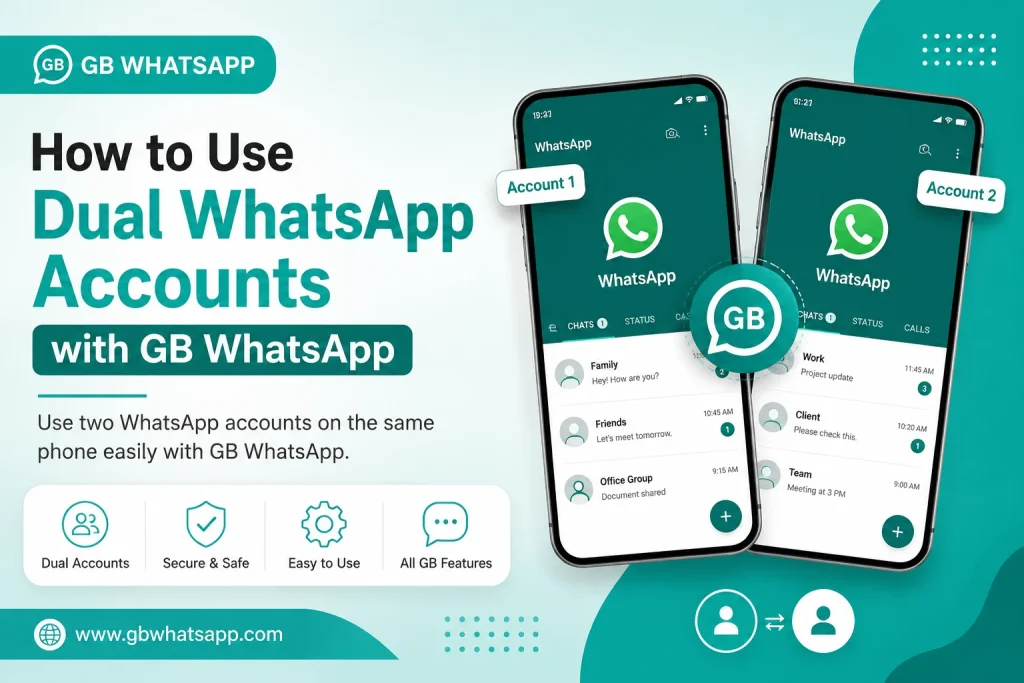
Running two WhatsApp accounts on one phone used to require unofficial workarounds. With GB WhatsApp, dual account support is built in, allowing you to use two numbers on the same device without any third party tools. Whether you want to separate work and personal life or manage two businesses, this 2026 guide shows you how to use dual WhatsApp accounts with GB WhatsApp.
What Is Dual WhatsApp in GB WhatsApp
Dual WhatsApp means running two separate WhatsApp accounts on the same Android device. GB WhatsApp has a built in feature that allows you to clone the app or run a second instance, so you can have two numbers active at the same time. Each account has its own chats, contacts, groups, and notifications, and they do not interfere with each other.
Why Use Dual WhatsApp Accounts
There are many practical reasons why people want to use two WhatsApp accounts on one phone.
- Separate work and personal chats
- Manage two businesses with different numbers
- Keep family and friends chats in a different account
- Use one number for customers and one for private life
- Avoid carrying two phones
- Switch between accounts quickly without logging out
Requirements to Run Dual WhatsApp Accounts
Before setting up dual WhatsApp accounts, make sure your phone meets the following requirements.
- Android version 5.0 or higher
- GB WhatsApp latest version installed
- Two active SIM cards or one SIM plus a virtual number
- At least 300 MB of free storage
- Stable internet connection for verification
Methods to Use Dual WhatsApp Accounts with GB WhatsApp
There are three main methods to run two WhatsApp accounts on one Android phone.
Method 1 Use GB WhatsApp Built in Clone Feature
GB WhatsApp has a built in option to clone the app into a second instance. This is the easiest way to run two accounts.
- Open GB WhatsApp and go to GBSettings
- Tap on Universal or Dual App settings
- Select Clone GB WhatsApp
- The second instance will be installed with a different icon
- Verify the second number and start using two accounts
Method 2 Use Android Dual App Feature
Most modern Android phones have a built in dual app or app clone feature in the settings.
- Go to your phone Settings
- Tap on Apps or Dual Apps
- Find GB WhatsApp in the list
- Enable the dual app or app clone toggle
- A second GB WhatsApp icon will appear on your home screen
- Open it and verify your second number
Method 3 Use a Separate App Like Parallel Space
If your phone does not support dual apps, you can use a third party cloner app like Parallel Space or Dual Space.
- Download Parallel Space from the Play Store
- Add GB WhatsApp to the parallel space
- Open the cloned app inside Parallel Space
- Verify your second number and start using two accounts
Comparison of Dual Account Methods
Each method has its own advantages. Here is a comparison to help you pick the best one.
| Method | Difficulty | Performance | Battery Use | Best For |
|---|---|---|---|---|
| Built in clone | Easy | Excellent | Normal | Most users |
| Android dual app | Easy | Excellent | Normal | Modern phones |
| Parallel Space | Medium | Good | Higher | Older Android phones |
| Multiple user profiles | Hard | Excellent | Normal | Shared family phones |
How to Switch Between Two WhatsApp Accounts
GB WhatsApp makes it easy to switch between two accounts without logging out. You can do it directly from the app.
- Open GB WhatsApp and tap on the three dots menu
- Tap on Switch Account or Account Switcher
- Select the account you want to use
- GB WhatsApp will reload with the new account data
How to Manage Notifications for Dual Accounts
Managing notifications properly is important when running two WhatsApp accounts. Here is how to set it up.
- Go to your phone Settings and tap on Apps
- Find both GB WhatsApp instances
- Set different notification tones for each
- Enable or disable notifications per account
- Use separate ringtones for work and personal chats
Best Settings for Dual WhatsApp Users
If you use two accounts regularly, these settings will improve your experience.
| Setting | Recommended Option |
|---|---|
| Different themes per account | Yes, for easy identification |
| Separate chat locks | Yes, for added security |
| Independent auto reply | Yes, for business use |
| Different notification tones | Yes, to avoid confusion |
| Auto switch by SIM | Yes, for hands free use |
| Per account status settings | Yes, for personal branding |
Common Problems with Dual WhatsApp Accounts
Sometimes running two accounts can cause issues. Here are common problems and how to fix them.
| Problem | Cause | Solution |
|---|---|---|
| Second account not verifying | Wrong number format | Add correct country code |
| Notifications not coming | Battery optimization | Disable battery saver for GB WhatsApp |
| Crashes when switching | Low memory | Clear cache and free storage |
| Cloned app not opening | Clone failed | Re-clone using dual app feature |
| Both accounts using same chat | Wrong instance | Restart both instances |
Tips for Managing Two WhatsApp Accounts
Follow these tips to manage your two WhatsApp accounts smoothly and professionally.
- Use different profile pictures for each account
- Set different display names to avoid confusion
- Enable chat lock on sensitive accounts
- Schedule messages based on the active account
- Use different wallpapers for each account
- Avoid sending messages from the wrong account by checking the profile
Final Thoughts on Dual WhatsApp Accounts
GB WhatsApp makes it incredibly easy to run two WhatsApp accounts on one Android phone. Whether you choose the built in clone feature, Android dual apps, or a third party cloner, the result is the same. Two independent WhatsApp accounts working side by side. With proper notification settings, custom themes, and chat locks, you can manage both accounts efficiently in 2026 without any hassle.
Frequently Asked Questions
Can I use two WhatsApp accounts on one phone with GB WhatsApp?
Yes, GB WhatsApp supports dual accounts. You can use the built in clone feature, Android dual app option, or a third party cloner app.
Do I need two SIM cards to use dual WhatsApp?
Not necessarily. You can use one SIM and one virtual number, or two SIMs, depending on your phone and network provider.
Will using dual WhatsApp accounts slow down my phone?
Running two WhatsApp instances uses more memory and battery, but modern Android phones handle it well. Closing background apps and keeping storage free will keep performance smooth.
Can I use different themes for each account?
Yes, GB WhatsApp allows you to set different themes for each account, making it easy to tell them apart at a glance.
Is it safe to use dual WhatsApp accounts with GB WhatsApp?
Yes, dual accounts are safe to use. Just make sure you download GB WhatsApp from a trusted source and keep both instances updated.