How to Schedule Messages in GB WhatsApp
Scheduling messages is one of the most practical GB WhatsApp features, especially for people who want to send messages at the perfect time. Whether it is a birthday wish, a work reminder, or a marketing message, GB WhatsApp lets you schedule any message to be sent automatically at a future date and time. This 2026 guide explains how to schedule messages in GB WhatsApp step by step.
What Is Message Scheduling in GB WhatsApp
Message scheduling is a feature that allows you to write a message now and send it later at a specific time. GB WhatsApp stores the message and delivers it automatically, even if you are not using your phone. This is perfect for sending greetings at midnight, business messages during work hours, or reminders at the right moment.
Why Schedule Messages in GB WhatsApp
There are many reasons why people use the message scheduling feature in GB WhatsApp.
- Send birthday wishes at midnight without staying up late
- Schedule work reminders for important meetings
- Plan marketing campaigns for customers
- Send good morning messages at a fixed time
- Plan event announcements in advance
- Avoid forgetting important messages
Requirements to Schedule Messages in GB WhatsApp
Before using the scheduling feature, make sure you have the following ready.
- Latest version of GB WhatsApp installed
- Stable internet connection
- Access to GBSettings from the main menu
- Permission for the app to run in the background
- Correct time and date set on your phone
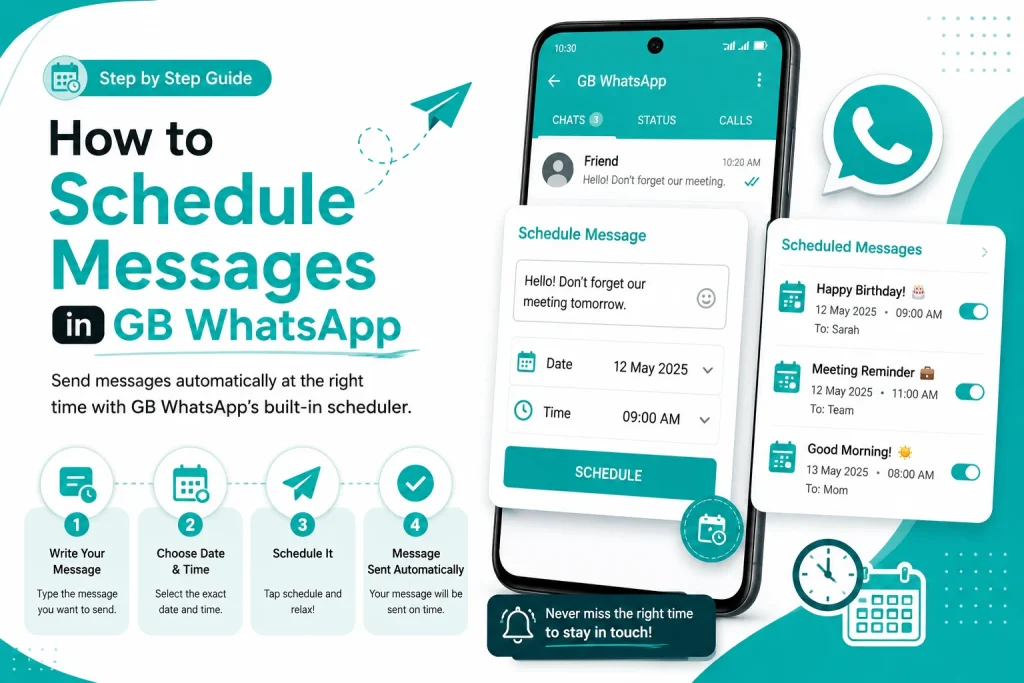
Step by Step Guide to Schedule Messages in GB WhatsApp
Follow these simple steps to schedule your first message in GB WhatsApp.
Step 1 Open the Chat Where You Want to Schedule a Message
Launch GB WhatsApp and open the personal chat or group where you want to send a scheduled message.
Step 2 Type the Message You Want to Send
Write the message in the text box. You can add emojis, images, videos, or documents before scheduling. The full message will be sent at the scheduled time.
Step 3 Tap the Schedule Icon
Look for the clock or schedule icon near the send button. In some versions, you may need to long press the send button to open the scheduling menu.
Step 4 Choose Date and Time
Select the exact date and time you want the message to be delivered. You can schedule messages up to one year in advance.
Step 5 Confirm the Schedule
Tap on Schedule or OK to confirm. The message will now be saved in the scheduled messages list and will be sent automatically at the chosen time.
Step 6 Manage Scheduled Messages
To view, edit, or cancel scheduled messages, go to GBSettings, then Scheduled Messages. From here you can modify or delete any pending message.
How to Schedule Recurring Messages
GB WhatsApp also allows you to set up recurring messages that send automatically on a daily, weekly, or monthly basis.
- Open GBSettings and go to Scheduled Messages
- Tap on Add Recurring Message
- Write your message and choose the frequency
- Select the time and days for the recurring schedule
- Save the rule and GB WhatsApp will handle the rest
Best Use Cases for Scheduled Messages
Here are some of the most popular ways people use scheduled messages in GB WhatsApp.
| Use Case | Schedule Type | Best Time |
|---|---|---|
| Birthday wishes | One time | 12:00 AM on the birthday |
| Good morning messages | Daily recurring | 7:00 AM every day |
| Work reminders | One time | 30 minutes before the meeting |
| Marketing messages | Weekly recurring | 10:00 AM on Monday |
| Event invitations | One time | 2 days before the event |
| Follow up messages | One time | Next morning after chat |
How to Edit or Cancel a Scheduled Message
If you change your mind or want to update a scheduled message, you can easily edit or cancel it.
- Open GBSettings and tap on Scheduled Messages
- Find the message in the list
- Tap on Edit to change the content or time
- Tap on Cancel to stop the message from being sent
How to Schedule Messages for Groups
Scheduling messages in groups works the same way as personal chats, but there are a few extra things to consider.
- Make sure you are an admin in the group if you want to schedule announcements
- Avoid scheduling too many messages in groups to prevent spam complaints
- Schedule important group messages during peak hours for better visibility
- Use clear language so everyone understands the scheduled content
Common Scheduling Problems and Fixes
Sometimes scheduled messages may not work properly. Here are common issues and how to fix them.
| Problem | Cause | Solution |
|---|---|---|
| Message not sent at scheduled time | App closed in background | Enable background activity for GB WhatsApp |
| Wrong time delivered | Wrong phone time | Enable automatic time and date |
| Scheduled message disappeared | App data cleared | Avoid clearing app data |
| Cannot find schedule option | Outdated version | Update GB WhatsApp to the latest version |
| Duplicate messages sent | Recurring rule conflict | Edit or remove the duplicate rule |
Tips for Using the Message Scheduler Effectively
Follow these expert tips to get the most out of the message scheduling feature in GB WhatsApp.
- Always check the time zone before scheduling international messages
- Do not schedule sensitive messages that may change later
- Use the recurring feature for daily reminders
- Keep a list of scheduled messages to track what is pending
- Avoid sending too many scheduled messages to the same contact
- Make sure your internet is active at the scheduled time
Final Thoughts on Scheduling Messages in GB WhatsApp
Scheduling messages in GB WhatsApp is a simple but powerful feature that can save you time and help you stay organized. From birthday wishes to business campaigns, you can plan ahead and let GB WhatsApp handle the delivery. With recurring options, easy editing, and a clean scheduled messages list, GB WhatsApp message scheduling in 2026 is one of the best tools for personal and professional communication.
Frequently Asked Questions
Is message scheduling free in GB WhatsApp?
Yes, the message scheduling feature is completely free in GB WhatsApp. You can schedule unlimited messages without any subscription.
Can I schedule messages in WhatsApp groups?
Yes, you can schedule messages in both personal chats and WhatsApp groups using GB WhatsApp.
What happens if my phone is off at the scheduled time?
If your phone is off or has no internet at the scheduled time, the message will be sent as soon as the phone is back online and connected.
Can I edit a scheduled message after setting it?
Yes, you can edit or cancel any scheduled message from the Scheduled Messages list inside GBSettings.
Can I schedule messages with images and videos?
Yes, GB WhatsApp allows you to schedule text messages, images, videos, documents, and even voice notes for future delivery.